

A practical SteamOS guide to installing Discord on Steam Deck or Steam Machine, adding it as a non-Steam app, tuning controls, and setting voice chat expectations.
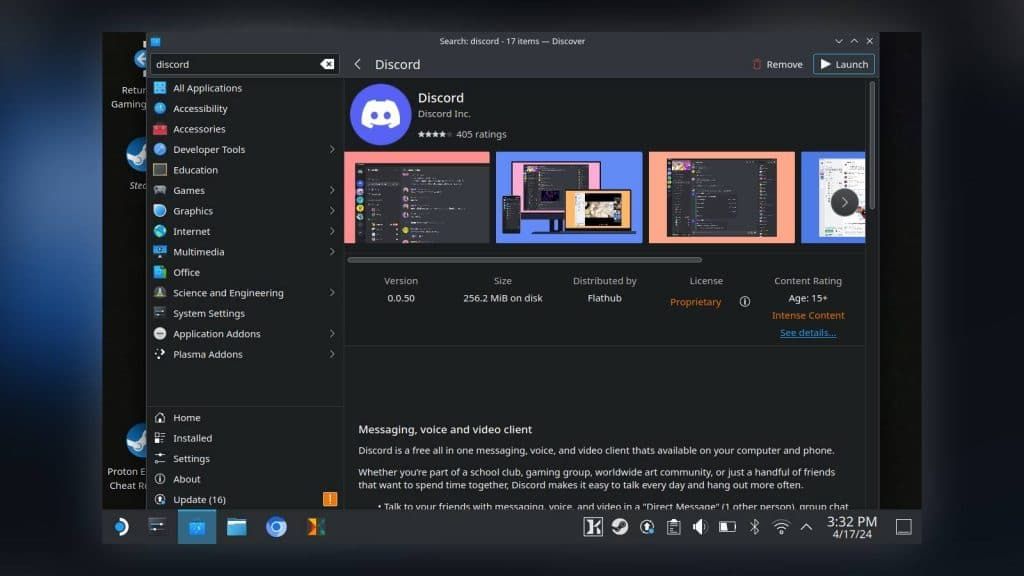
Image: dexerto.com
Discord on SteamOS starts as a PC app, not a console feature
The confirmed path for using Discord on Steam Deck or Valve’s console-like Steam Machine is still the PC path: leave Gaming Mode, install Discord through the Linux desktop, then add it to Steam as a non-Steam program. GameSpot’s guide describes the process as the same across Steam Deck and Steam Machine, which is useful, but it also exposes the tension for anyone expecting Discord to behave like a built-in console service.
SteamOS can make a handheld or living-room box feel like a dedicated game machine, yet the setup relies on the same flexibility that makes Valve’s devices unusual. GameSpot frames Steam’s devices as “pretty much just PCs running on Linux,” and that distinction is the whole strategy layer here. Discord works because SteamOS gives you a desktop and access to Linux apps, not because Discord is presented as a native Steam console feature in the cited sources.
That matters most for Steam Machine buyers. MeinMMO, summarizing Valve’s newer Steam Machine push, describes the hardware as Valve’s renewed attempt to bring the PC market into the living room after the first Steam Machine effort failed in 2018, four years after launch. It also says the new machine is meant to deliver compact PC gaming, with models differentiated by storage and with the controller sold in configurations with or without the system. In that context, Discord is best understood as part of the PC value proposition. It is powerful, flexible, and familiar, but it asks the owner to do a short PC-style setup before it belongs in the living-room flow.
The clean install path: Discover, Discord, then Add Non-Steam Game
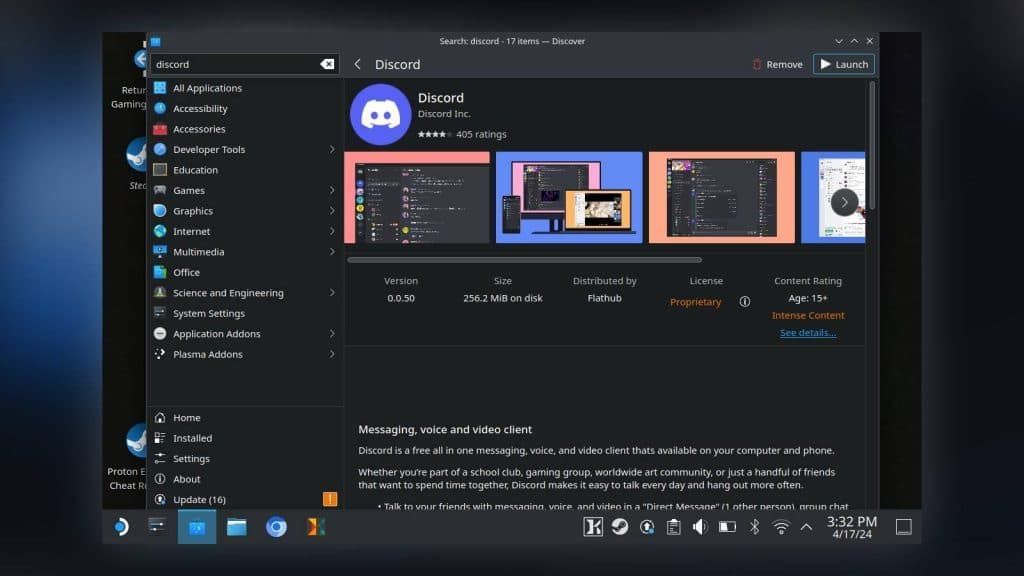
The core SteamOS Discord guide is straightforward once you know where Valve hides the PC layer. According to GameSpot, you begin from the Steam menu, choose Power, and switch to Desktop Mode. In Desktop Mode, open Discover, the blue software-center icon, search for Discord, and install it from there.
The second half of the setup is the step many short social clips compress too aggressively. Staying in Desktop Mode, open Steam itself, use the Add Game option at the lower left of the Steam window, choose Add Non-Steam Game, select Discord, and then choose Add Selected Programs. After that, return to Gaming Mode. That is the practical “add Discord to Steam” route, and it is the reason Discord can appear beside games in your Steam library rather than living only in the desktop environment.
The trend around this setup is visible outside traditional guides. TikTok discovery pages supplied in the source material surface searches and clips about how to add Discord to Steam Deck, how to be on a Discord call on Steam Deck, and whether Discord can be used while in Gaming Mode. Those listings are not technical documentation, but they do show the player demand pattern: people are not asking whether Steam Deck can browse the web in the abstract. They want their existing PC voice and text setup to follow them into handheld play and, soon, into the TV space around Steam Machine.
Use Gaming Mode as the launcher, but remember Discord is still a separate app
Once Discord has been added as a non-Steam program, GameSpot says it can be used in the background while playing other games. In practice, that means Discord becomes another application you can launch through Steam, leave running, and switch back to when you need to join a call or close the app.
This is the key expectation to set for Discord on Steam Deck voice chat. Based on GameSpot’s description, you should think in terms of switching between windows rather than assuming a deeply integrated console party-chat layer. The guide says users can switch between game and Discord windows as needed, including when joining a voice chat or closing Discord. That is enough for a functional PC-style session, but it is not the same promise as a system-level social feature documented by the platform holder.
GameSpot also notes a useful behavior distinction for long sessions. Discord can remain open between uses if the Steam Deck or Steam Machine is put into sleep mode, but it fully closes if the device is shut down. For handheld players, that makes sleep a tactical choice if you are stepping away mid-session and want your communication setup preserved. For a living-room Steam Machine, it also means household habits matter. Treating the box like a console that is powered off at the end of every use will reset Discord along with the rest of the running apps.
Controller-friendly Discord depends on changing the layout before launch
The install is only half the battle because Discord was designed around a mouse, keyboard, and desktop interface. GameSpot’s author reports running into an issue with Discord and the default controller layout, then resolving it by adjusting the app’s controller settings before opening Discord.
The recommended path is to open the Steam Library, select Discord, and use the controller icon on the right side before launch. From there, change the layout to whatever works for your setup. GameSpot specifically suggests Mouse Only for the Steam controller, because that maps the right trackpad as a mouse and the right trigger as a left-click, imitating the basic feel of desktop Discord.
That recommendation carries over naturally to how you should evaluate Discord on Steam Machine. If you buy the system expecting a couch-first Discord experience, controller mapping is the friction point to solve early. If you have a Steam Controller or a Deck-style input setup with trackpads, Discord is much easier to manage. If your living-room setup uses a more conventional gamepad without a comfortable pointer method, joining channels, clicking settings, or managing text chat may feel slower unless you keep a keyboard, mouse, or trackpad-friendly controller nearby.
Voice chat should work, but plan around PC-style app management
TinyGrab’s Steam Deck Discord explainer says Discord works on Steam Deck and lists core features users can expect from the installed app, including voice and video chat, text channels, and screen sharing. GameSpot’s guide is narrower but confirms the important gaming use case: Discord can run in the background while you play and can be brought forward when you need to join voice or close it.
Those two claims create a sensible expectation for Steam Deck voice chat. If your goal is to sit in a Discord call while playing, the cited guides support that use case. If your goal is a frictionless console social layer with no app switching, no separate launch step, and no controller-layout tuning, the provided sources do not establish that. The safe assumption is that SteamOS gives you the PC app, then Steam lets you launch and manage it from Gaming Mode after you add it.
There is also a browser fallback, but it should be treated as a convenience route rather than the main setup for regular play. TinyGrab says Discord can be used through a browser such as Firefox or Chrome, both of which it says are available through Discover, but describes that approach as less ideal for continuous use than the dedicated application. For a one-off check-in, the browser path may be enough. For regular multiplayer sessions, installing Discord and adding it to Steam is the cleaner plan.
Steam Machine buyers should treat Discord setup as part of PC ownership
The new Steam Machine pitch, as reported by MeinMMO, sits between console simplicity and PC flexibility. The outlet says Valve’s revived Steam Machine is intended to bring PC gaming into a compact living-room form, while also noting open questions around price as of November 20, 2025. It reports that the machine can be bought with or without the new Steam controller, that base performance is limited by a proprietary motherboard with soldered CPU and GPU, and that storage options include 512 GB and 2 TB models. Those hardware details are not needed to install Discord, but they shape the buying mindset.
If Discord is part of your daily multiplayer stack, the most important buying question is not whether Steam Machine can theoretically run it. GameSpot’s guide says the same Discord process applies on Steam Machine and Steam Deck. The sharper question is whether you are comfortable maintaining a PC-style communication app on a device marketed for the TV. That includes switching to Desktop Mode for installation, adding the program manually to Steam, choosing a controller layout, and understanding sleep versus shutdown behavior.
For Steam Deck owners, this is already familiar territory. The handheld’s appeal has always included the ability to step outside the curated console lane when needed. For Steam Machine, the risk is expectation mismatch. A buyer who wants a pure console replacement may see the Discord process as setup friction. A PC player moving to the couch may see the same process as a small price for carrying over Discord servers, voice habits, and Steam library access into a living-room box.
The practical setup plan for a reliable SteamOS Discord session
For the most reliable routine, install Discord through Discover in Desktop Mode, add it through Steam’s Add Non-Steam Game flow, then return to Gaming Mode and test the app before your next multiplayer night. Open Discord from the Steam Library, confirm you can log in, join the channel you normally use, and then launch a game while leaving Discord running in the background.
Before relying on it during a match, tune the controller layout from Discord’s Steam entry rather than waiting until you are already in a call. GameSpot’s Mouse Only suggestion is especially sensible for trackpad-equipped controls because Discord’s desktop interface rewards pointer precision. If you expect to type often, pairing a keyboard remains the more realistic solution, although the supplied sources focus on controller layout rather than keyboard recommendations.
The forward-looking read is simple: Discord on Steam Deck and Discord on Steam Machine work best when you treat SteamOS like a living PC platform with a console-shaped front end. The non-Steam app route is not a hack in the reckless sense. It is the supported Steam pathway described by GameSpot for getting Discord into your library. Just do not mistake that pathway for a built-in party-chat promise. Install it, add it, map it, test voice chat, and decide whether sleep mode or full shutdown fits the way you actually use the device.